


You’re building a Marketo email template. Your aim is to make it reusable. You pause to ask yourself: should I create a Module or a Snippet?
If you’ve hesitated over that question, this blog is for you. Modules and Snippets are two tools that look similar on the surface – both promise reusability, efficiency, and consistency. However, they solve two different problems.
We’ve worked with countless Marketo teams and observed that teams who nail Modules and Snippets scale programs seamlessly. The ones that don’t? Well, they’re always firefighting. So, in this guide, we’ll clear the confusion and give you a framework to make the right choice.
What are Marketo Modules?
A Marketo Module is a reusable section of an email template. And it’s quite easy for marketers to edit this – add, remove, duplicate, or rearrange without touching code.
Modules are blocks inside a template, giving non-technical users the flexibility to easily and quickly create different email layouts.
Some common module examples:
- Hero banners
- Two-column or three-column content sections
- Product card grids
- Call-to-action sections with dynamic button text
- Feature highlight blocks
- Social proof sections
- Footer areas (though snippets are often better here)
Why marketers love Modules
Because without any HTML knowledge, you can drag, drop, reorder, and remove sections just like building with LEGO blocks. Each Module instance can have different content while maintaining the template’s structure and design integrity.
Here’s a an example
A marketing team has a standard “Product Feature” module that includes:
- Product image
- Heading
- Description
- CTA button
For each campaign, the team can add the Module and update the content without changing the code.
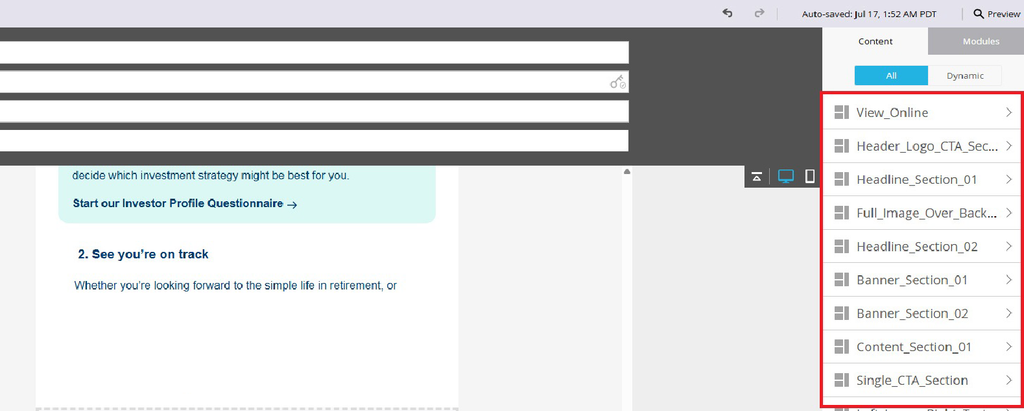
Here’s how the modules will appear in the editor.
You can see the modules in the right-hand panel. All you need to do is drag and drop them into the center layout area to build your email.
What are Marketo Snippets?
Snippets in Marketo are reusable blocks of pre-written content. You can easily insert them into emails, landing pages, or even other snippets.
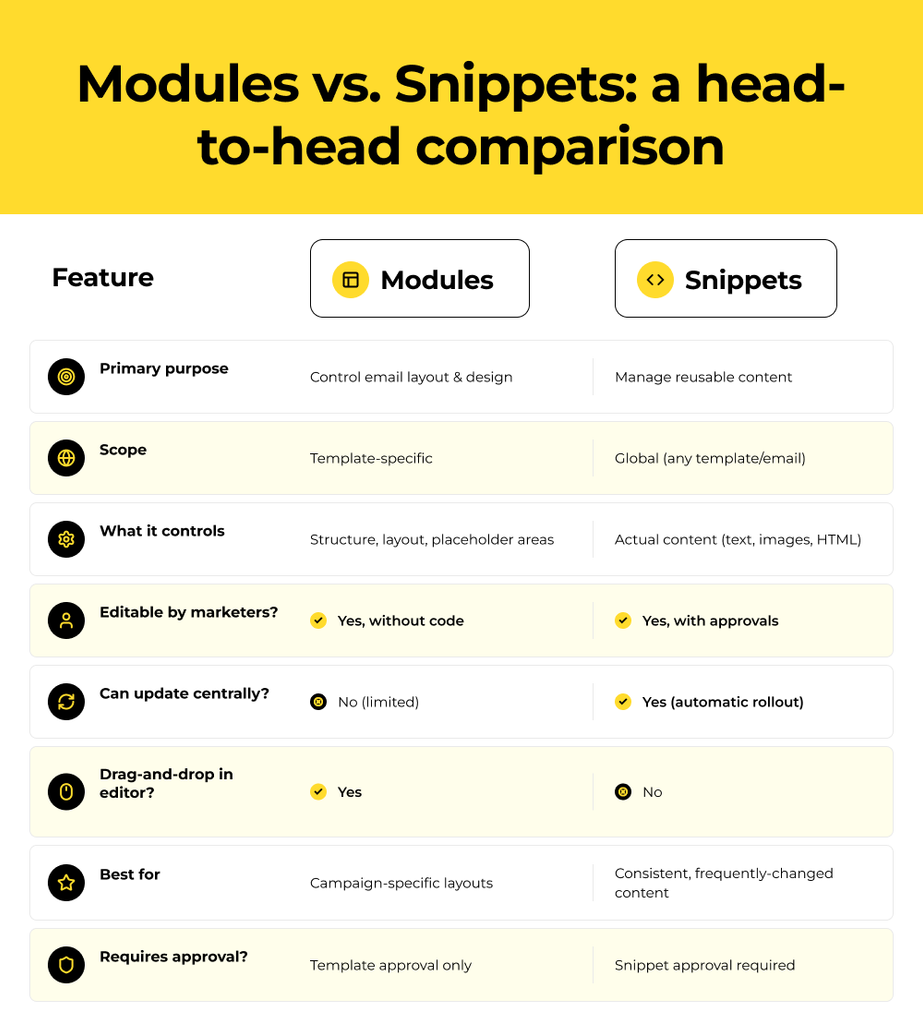
So, while modules control layout, snippets handle content. They’re centrally managed and can be updated once to push changes everywhere they’re used.
Common snippet examples
- Email signatures and legal disclaimers
- Footer compliance text and privacy statements
- Standard promotional messages or discount codes
- Company contact information and office addresses
- Brand lockup logos and copyright notices
Why Snippets are powerful
When your legal team updates compliance language, you update one snippet. Instantly, all your emails using that Snippet reflect the change. Because no manual editing is required, you won’t miss updating any asset with that Snippet.
When to use Marketo email Modules
Need design flexibility? Choose Modules.
Go for Modules when different campaigns need different layouts but must maintain consistent branding and structure.
Use Modules for:
- Specific layouts – A newsletter where you use 3 sections this week and 5 sections the next. Promotional email with hero + CTA. Event invite with agenda + map + speaker bios.
- Reducing developer dependency – You can launch campaigns without dependency on developers to code a new template each time- a huge productivity win.
- Brand consistency at scale – With pre-built modules, you lock in fonts, colors, button styles, and spacing. The brand guidelines can’t break.
- Supporting multiple use cases – A single modular email template with hero, content blocks, sidebars, and CTAs can manage 80% of your email needs.
Real scenario
According to your marketing plan, you need to launch 15 different emails for a product launch campaign in one week. If you have a modular email template created, you can use the same template but customize which sections appear and in what order. And without modules? Well, you’d need 15 different templates or hours of manual HTML editing!
When to use Snippets
Snippets must be used when content needs frequent updates and wide reuse.
Snippets solve the “one change, everywhere” problem that plagues large email programs.
Use snippets for:
- Global content that changes – Company address, phone number, social media links, footer disclaimers. Update once, propagate everywhere instantly.
- Compliance and legal requirements – Your legal team updates privacy statements or disclaimer language. With snippets, this applies across all templates, and you stay compliant.
- Seasonal or time-bound content – Holiday messaging, promotion codes, or event details that need to be consistent across multiple emails and updated on a set schedule.
- Brand elements shared across programs – Company logo with variations, standardized CTAs like ‘Get started’, or contact information.
- Enterprise governance – At large organizations, snippets are generally managed in a central workspace and are shared with department-specific workspaces. This way, not only control is maintained but distribution too is enabled.
Check this scenario
You have 200+ active emails in Marketo. Your compliance team needs to update a privacy notice that appears in 150 of them. Without snippets, that’s 150 manual edits and approval cycles. With a snippet, it’s one change.
How to create a Snippet in Marketo Engage
1. Go to Design Studio
- Log in to Marketo.
- Navigate to Design Studio.
- Click New.
- Select New Snippet.
2. Create the Snippet
You can check this link for steps.
- Enter the required details:
- Snippet Name
- Description (optional)
- Folder/location (if required)
- Click Create.
3. Add Content to Snippet
You can check this link for steps.
After creating the snippet:
- Open the snippet.
- Click Edit Draft.
- Add your content:
- HTML content
- Text content
- Images/files
- Tokens (if required)
4. Approve the Snippet
- Save changes.
- Click Approve Snippet.
Only approved snippets appear when adding them into emails.
5. Add Snippet into Email
- Open your email.
- Click Edit Draft.
- Select the section/module where you want to add it.
- Choose Replace with Snippet.
- Select your snippet.
- Save.
You can check this link for steps.
Important notes
- Snippets should contain only reusable body content (HTML + Text). Do not embed Marketo email syntax/tokens that belong to email setup inside snippets.
- When you update and approve a snippet, the change can reflect in emails that use it.
For a Marketo email template/module workflow, snippets are usually used for reusable sections like footer, header, legal copy, or dynamic blocks.
You can add a snippet by selecting it from the dropdown list, based on your requirements.

You can create snippets here. Once created, all available snippets will appear in this panel on the main page of your Marketo account, where you can easily select and use them as needed.

Can Modules and Snippets be used together?
Yes. That’s the powerful part.
A typical best-practice email template structure looks like this:
Template structure
- Module: Header (contains company branding)
- Snippet: Logo lockup (inserted inside the header module)
- Module: Hero section
- Module: Content sections (repeatable)
- Module: CTA section
- Snippet: Footer disclaimer (inserted in footer module)
- Snippet: Contact information (inserted in footer module)
Why this works
Modules give you layout flexibility. Snippets handle content that needs consistent, centralized updates. Work best together.
Common mistakes to avoid
- Using modules for static content – If a section never changes across emails, use plain template code, not a module. Modules will only add complexity in this case.
- Using snippets for complex layouts – Snippets aren’t designed to replace full email sections with multiple columns, images, and intricate spacing. Modules do that.
- Putting Marketo syntax in snippets – Don’t embed Marketo tokens, dynamic content, or classes into a Snippet. Keep Snippets as clean HTML/text only.
- Over-modularizing – If you create multiple tiny modules for a single template, it adds unnecessary complexity. Building 4-6 purpose-built modules per template- that’s enough.
- Ignoring governance – You should control who can create/edit modules and snippets. Without clear ownership, you’ll end up with hundreds of unused, outdated modules cluttering your workspace.
Best practices for success
1. Plan before you build
- Who updates each piece of content?
- How often does it change?
- Will it be reused across multiple emails?
- Is it a layout element or a content element?
Answering these questions early saves hours of rework.
2. Version and document your modules/snippets
Use clear naming conventions like footer-2025-global or hero-product-launch. This clarifies what each asset is for and when you created it.
3. Review and archive regularly
Every quarter, audit your Modules and Snippets. Remove unused ones. Update documentation. This way, you avoid template debt from build-up.
4. Involve stakeholders early
Before implementing a module/snippet strategy, loop in designers, developers, compliance, and marketing ops. A consensus-based approach will always beat a top-down mandate.
Final word
Marketo Modules and Snippets aren’t competing tools; in fact, they complement each other. We’ve seen that teams who master both cut email production timelines in half, reduce compliance issues, and have happier marketing teams.
Where to start? By auditing your current email program. You’ll have to identify content that’s repeated across multiple emails (Snippets). Similarly, identify layout variations in your templates (Modules). And then build intentionally.
Do you have any questions or need help implementing Modules and Snippets in your Marketo instance? Tell us more; we’ve helped hundreds of teams get this right.

Prajakti Pathak

