


You spent three hours getting a bulletproof CTA button to render properly in Outlook.
You added the VML fallback, the MSO conditional comments, and the ghost tables. It finally worked, and then someone forwarded you a screenshot from a colleague’s inbox where the whole thing looked broken again.
Sound familiar?
For almost two decades, Outlook has been the client every email developer loves to hate. That’s changing now, and it’s changing fast enough that you need to know exactly what’s different before your next campaign goes out.
Let’s cut to the chase and learn the key differences between New Outlook vs Classic Outlook and how the Outlook rendering engine has evolved over the years.
What is new Outlook, and why does the rendering engine matter?
New Outlook for Windows is Microsoft’s rebuild of Outlook as part of its “One Outlook” initiative, with a single codebase instead of separate versions for Windows, web, and mobile. That’s the short version.
Here’s the part that actually matters to you as a developer: Microsoft built New Outlook on WebView2, which runs on the same Chromium engine as Microsoft Edge, and pairs it with what Microsoft calls a Native Windows Integration Component. Microsoft itself describes the experience as closer to Outlook on the web than to a traditional desktop app.
That single architecture decision is the reason this whole comparison exists. The Outlook email rendering a client uses determines which CSS properties are honored, which are quietly stripped out, and which force you back into workaround mode. Change the engine, and you change the rules.
Classic Outlook

New Outlook
Why this comparison matters more than you think
We didn’t want to just repeat what Microsoft’s documentation says. We wanted to see the difference for ourselves.
So we built one responsive HTML email with a hero image, live text heading and paragraph, bulletproof CTA button, a two-column product layout, social icons, footer, and dark mode support, and tested it using Litmus for CSS support, layout consistency, and dark mode behavior.
We ran it through Outlook 2016, 2019, 2021, and Microsoft 365 (Classic), New Outlook for Windows, and, for reference, Gmail, Apple Mail, and Yahoo Mail.
Here are a few reasons that matter for your day-to-day work:
- Your next campaign might render perfectly in the client you tested and look broken in the one you didn’t.
- Outlook’s share of global opens is small, but it’s concentrated in exactly the B2B and enterprise inboxes a lot of us are sending to.
- Microsoft has already set a timeline for phasing out the old Outlook email rendering engine, which means the workarounds you rely on today have an expiration date.
So ask yourself: do you actually know which Outlook engine your subscribers are using to open emails right now?
Now, let’s head straight to the key differences between new Outlook vs classic Outlook.
The core difference: Rendering engine architecture
Classic Outlook: The Microsoft Word Engine
Since 2007, Classic Outlook has rendered HTML emails using the same engine that renders your Word documents. That’s not a metaphor; it’s literally Word’s engine, repurposed for something it was never built to do.
And that’s exactly why Classic Outlook has been such a headache. Limited CSS support. Inconsistent spacing and padding. Weak responsive layout handling. A heavy reliance on table-based structures just to hold a design together. Developers have spent years building Outlook-specific techniques, VML, ghost tables, MSO conditional comments, as workarounds for an engine that was designed for documents, not inboxes.
New Outlook: Chromium via WebView2
New Outlook flips that. Because it runs on Chromium, HTML and CSS render more accurately, spacing behaves the way you’d expect, and responsive layouts hold up without extra scaffolding.
There’s a bigger picture here, too. This move brings Windows Outlook closer in line with Outlook for Mac (which uses WebKit) and Outlook.com and Microsoft 365 web (both Chromium-based). It doesn’t erase the historic gap between Outlook and everyone else, but it narrows it considerably, as Stripo has also noted in its own coverage of the shift.

What we actually found when we tested new Outlook vs classic Outlook
We ran the same Outlook HTML email through three specific tests. Here’s how it went.
Test 1: Border-radius support

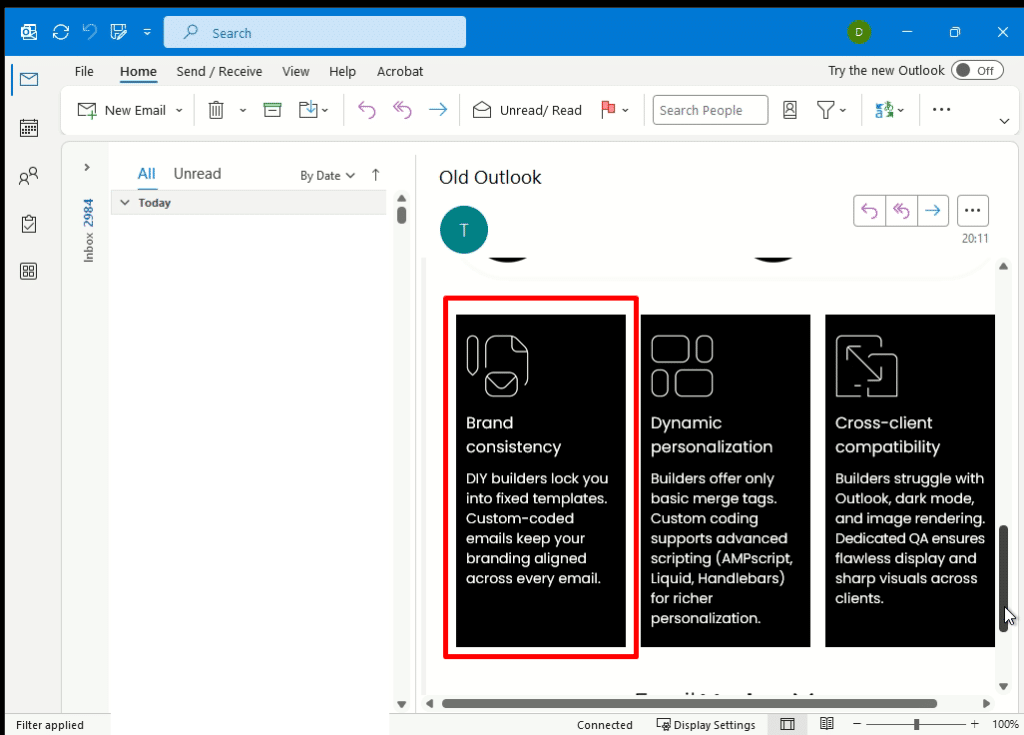
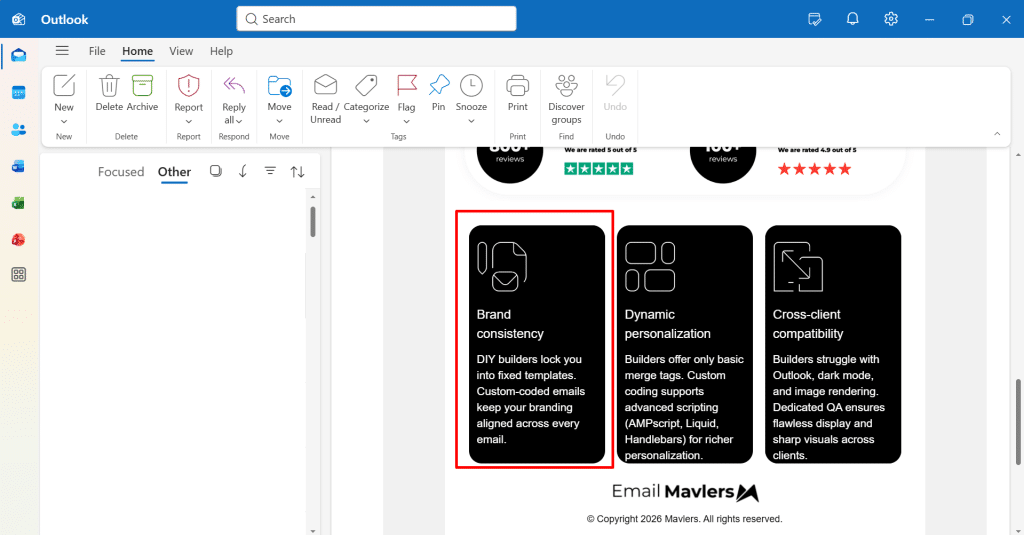
We styled a table with standard CSS border-radius and added zero Outlook-specific fallback code. Classic Outlook ignored the border-radius completely, sharp corners, no rounding, like the CSS wasn’t even there. New Outlook rendered the same markup with correctly rounded corners, right out of the box.
What this means for you? Keep your VML-based bulletproof buttons and table fallbacks for any audience still on Classic Outlook. You can start using standard HTML/CSS buttons for segments you’ve confirmed are on New Outlook, but only those segments.
Results
Classic Outlook
The black table is displayed without rounded corners because the Microsoft Word rendering engine ignores the border-radius property.
New Outlook
The same HTML rendered perfectly with rounded corners, requiring no additional coding.
Test 2: Dark mode rendering
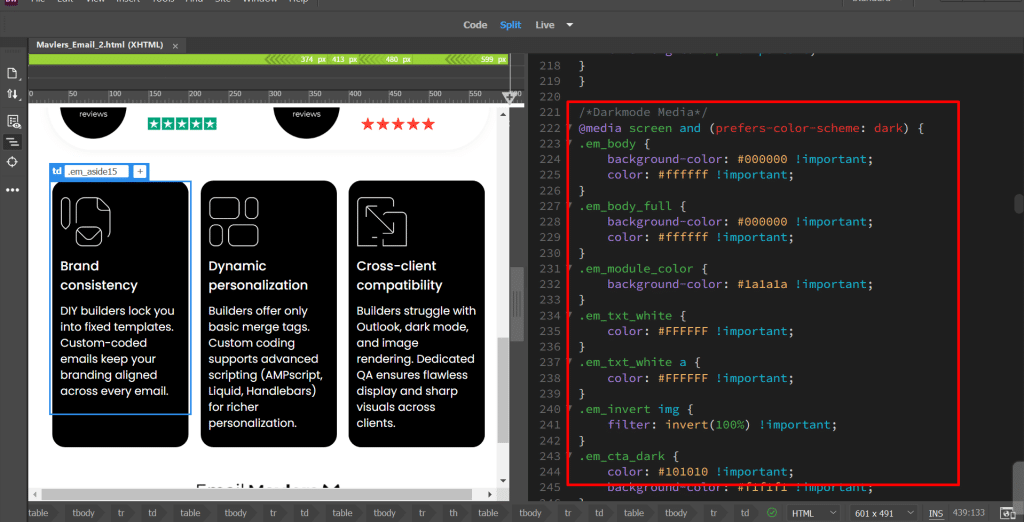
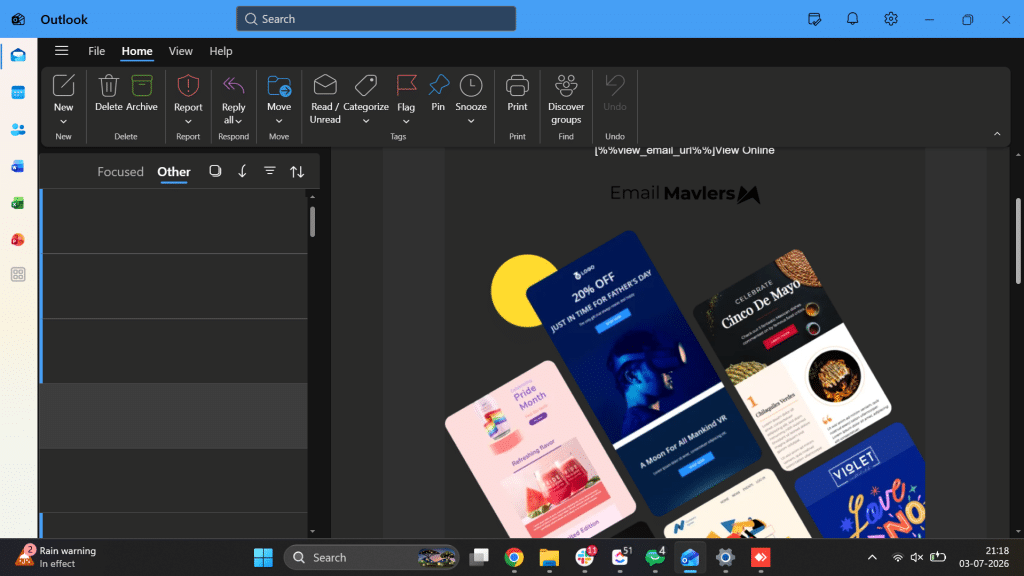
We built the same Outlook HTML email using standard dark-mode coding techniques and checked how each client handled color, branding, and text readability. Classic Outlook didn’t apply a true dark-mode transformation at all; it displayed almost identically to the light-mode version. New Outlook handled the dark-mode treatment far more accurately.
What this means for you? Don’t treat dark mode as solved just because New Outlook does a better job. Support still varies wildly across the entire email client landscape, so every campaign needs its own dark-mode QA pass, regardless of which engine is powering it.
Classic Outlook
During testing, Classic Outlook did not apply a true dark mode transformation to this email. The message continued to display similarly to light mode, resulting in limited dark mode support compared with New Outlook.
New Outlook
Test 3: Two-column layout alignment
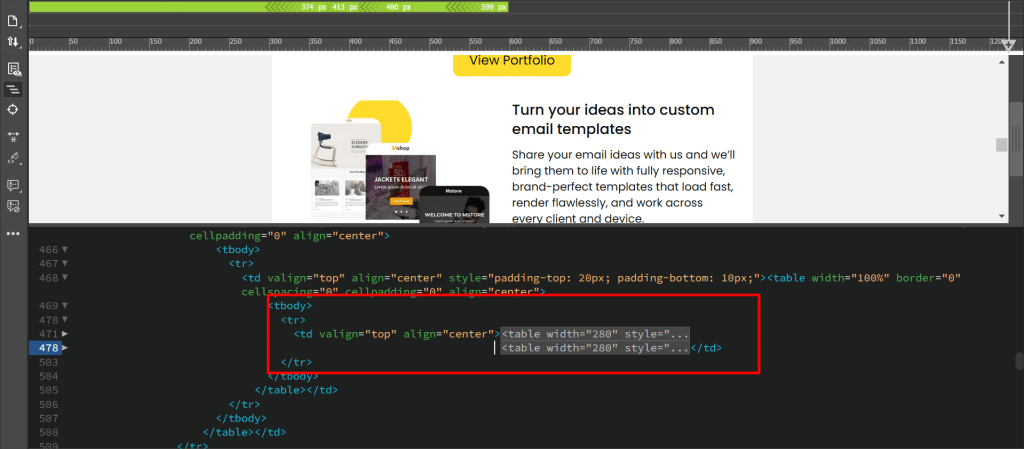
We built a standard two-column section without any MSO conditional comments. Classic Outlook introduced unexpected spacing between the columns, a known symptom of how the Word engine handles table and cell spacing. New Outlook aligned the columns correctly with zero Outlook-specific fixes.
What this means for you? Hold on to your MSO conditional comments, ghost tables, and Outlook-specific table structures for as long as Classic Outlook shows up in your audience. They’re unnecessary in New Outlook, but they’re still doing real work wherever Classic Outlook persists.
Classic Outlook
Unexpected spacing appeared between the columns because of the Microsoft Word rendering engine.

New Outlook
The columns aligned correctly without requiring Outlook-specific fixes.

The pattern across all three tests
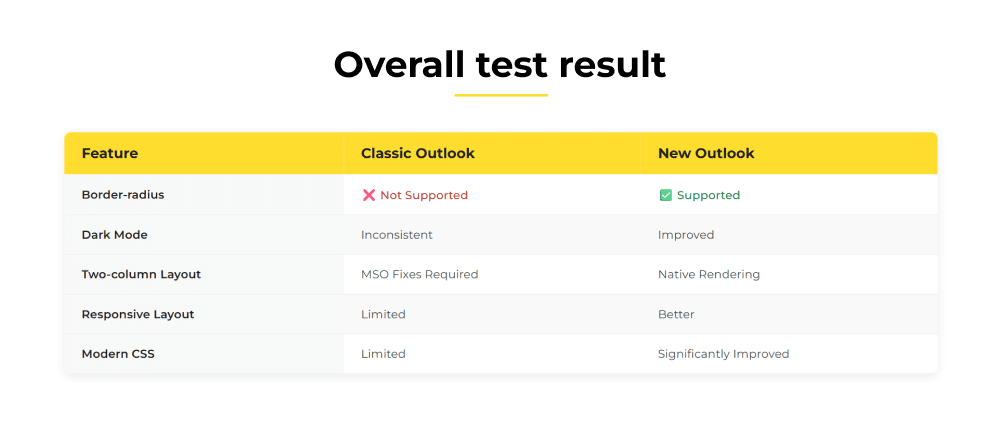
Line up the results, and one thing becomes obvious: New Outlook consistently matched modern, browser-like rendering. Classic Outlook consistently needed a workaround. That’s not three separate bugs; that’s one underlying cause: the Outlook email rendering engine itself.
Challenges developers should still watch for
New Outlook is a real improvement. It’s not a perfect browser.
Some CSS behaviors in New Outlook still differ from those in standard Chromium browsers, so complex layouts still need validation before you hit send. There’s also a known quirk worth flagging: reports of New Outlook running a post-load processing step that rewrites or strips inline styles after the initial render, meaning your Outlook HTML email can look correct for a second and then break, as Customer.io has documented.
Our practical suggestion: simplify where you can. Favor single-column layouts, use inline images instead of background images, and apply consistent border-radius values on all sides. Less complexity means less exposure to this kind of post-render surprise.
Why classic Outlook still matters in 2026
Here’s the deadline everyone in email development should have circled: Microsoft has said it will end support for desktop Outlook versions (like Outlook 2021) running the Outlook rendering engine in October 2026. That’s the concrete milestone that makes this whole comparison timely right now.
But an end-of-support date isn’t a light switch. Industry estimates suggest the installed base of legacy Word-engine Outlook will remain significant in conservative enterprise environments well into 2028 and 2029, simply because large organizations move slowly on client updates.
And the numbers back that up. Litmus Email Analytics data from May 2026 puts Outlook, across all versions combined, at roughly 6-7% of global email opens, well behind Apple Mail (around 65%) and Gmail (around 24%). That looks small at a glance. But Outlook usage skews much higher in B2B and enterprise-heavy sender lists than the global average suggests. Source
Think about it. If your list leans B2B, that “small” 6-7% could be a third of your actual audience. Check your own client breakdown before you assume the global stats apply to you.
Best practices for email developers in 2026
Here’s how we’re approaching this transition with our own campaigns and our clients’:
- Keep testing both. Run every campaign against Classic and New Outlook until Classic’s presence in a given audience drops close to zero.
- Retain fallbacks selectively. Don’t strip out MSO conditional comments and ghost tables just because New Outlook doesn’t need them. Keep them as long as your list analytics show Classic Outlook opens.
- Build with progressive enhancement. Give New Outlook and other modern clients the full experience while Classic Outlook gracefully falls back to the table-based version. You don’t need two separate emails to pull this off.
- Validate before every send. Use rendering-preview tools like Litmus or Email on Acid to catch client-specific issues, including the New Outlook post-processing quirk we mentioned above, before your campaign goes live.
Wrapping up
That brings us to the business end of this article, where it’s fair to say that New Outlook’s move to WebView2 and Chromium is a real, measurable step up from the old Word engine; our border-radius, dark mode, and two-column tests all point to the same conclusion.
But Classic Outlook isn’t gone. It’s still sitting in a meaningful chunk of enterprise inboxes, and the October 2026 end-of-support date marks the start of a long transition, not the end of one.
So here’s the way forward: pull your own list’s Outlook version breakdown now, keep your fallback code until the data tells you otherwise, and treat 2026 as the year you start retiring legacy Outlook workarounds, not the year you finish.
If you’d like a second set of eyes on how your email templates are holding up through this transition, our team at Email Mavlers is always happy to take a look. Let’s talk.

Ahmad Jamal | Content writer

