



“The best way to read blogs hasn’t changed in twenty years. RSS. It’s free and easy and it just works. It’s the most efficient way to get the information you’re looking for, and it’s under your control.”
That’s Seth Godin himself on the pillar virtue of RSS feeds.
But RSS is often misunderstood as a legacy tool meant solely for blog syndication.
Modern email service providers (ESPs) employ RSS feeds to efficiently deliver product news, automated thought leadership, and targeted regional updates. Understanding how each platform processes these feeds enables full automation of content distribution while maintaining control over brand design, audience segmentation, and engagement.
In this guide, we will cover:
- The Strategic value: How RSS-to-email fits into a modern marketing stack.
- Practical use cases: Beyond the blog—how enterprise teams use feeds for product and regional updates.
- Step-by-step implementation: Technical setup guides for some of the leading ESPs.
Let’s get started.
What is RSS to email?
RSS to email is an automated way to deliver content from a website’s RSS feed to a subscriber’s inbox. Instead of asking your readers to manually visit your blog to check for updates, an RSS-to-email system automatically packages your latest posts into the newsletter and sends it to them.
The content can be really anything such as:
- Blog posts (duh!)
- News articles
- Product announcements
- Podcast episodes
- Press releases
- Knowledge base updates
- Event listings
The result is a largely automated content distribution system that requires minimal ongoing effort once established. The benefits are substantial. In fact, curated RSS-to-email digests achieve open rates of 40% to 60%. It is significantly higher than promotional emails, which average 20% to 30% .
Use cases of RSS in email marketing
1. Multi-source content aggregation
This is the basic use case. Instead of sending updates from just one blog, you can combine several feeds into a single email. For example:
- Company blog
- Product updates
- Industry news
- Partner content
- Podcast feeds
2. Regional content distribution
Larger organizations have separate blogs for different regions. RSS ensures the right content reaches the right audience. For example:
- US Feed
- UK Feed
- APAC Feed
- EMEA Feed
Subscribers receive location-based content. No need to create separate campaigns for each market.
3. Thought leadership
Many executives regularly share their work on platforms such as:
- Company blogs
- Medium
- Substack
- News sites
With RSS automation, your leadership content reaches your audience as soon as it is up.
4. Product release newsletters
Software teams regularly send out updates such as:
- Release notes
- Changelog updates
- Security announcements
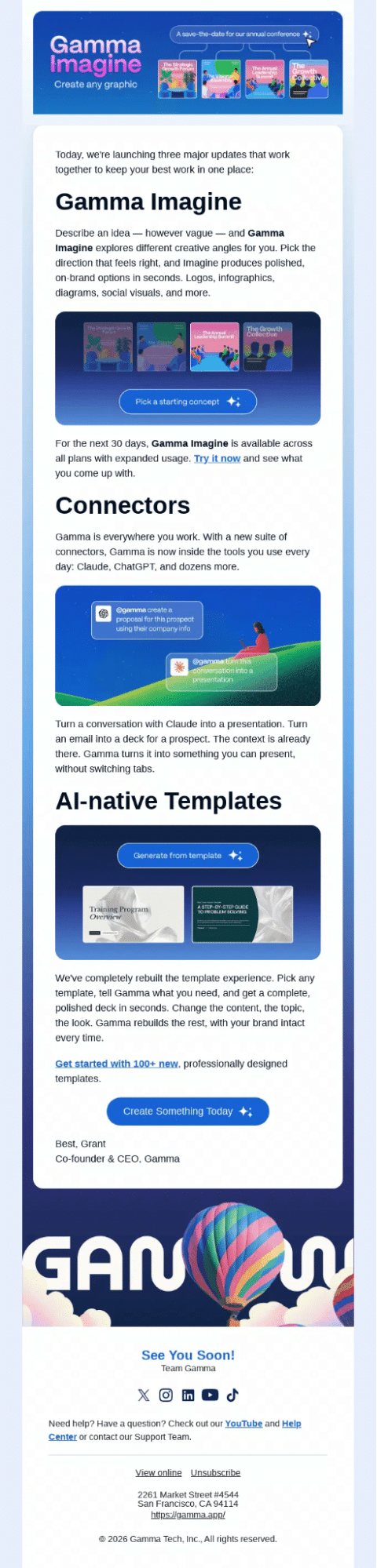
Below is an example of an RSS-to-email-newsletter template from Gamma.
Next up, let’s explore how to set up an RSS feed in different ESPs.
How to send RSS to email
No matter how it looks across various ESPs, the process usually follows these five steps:
- The RSS feed shares new content
- The email service provider checks the feed at set times
- It finds any new entries
- Template variables collect the feed data
- An email is created and sent out automatically
Let’s kick off with HubSpot.
1. HubSpot RSS email
HubSpot is one of the easier platforms to use because RSS email is built in. So you don’t need any workarounds. These are the steps.
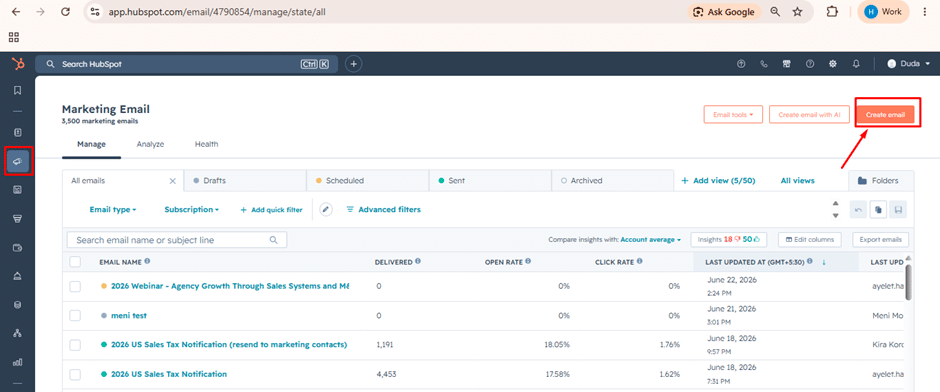
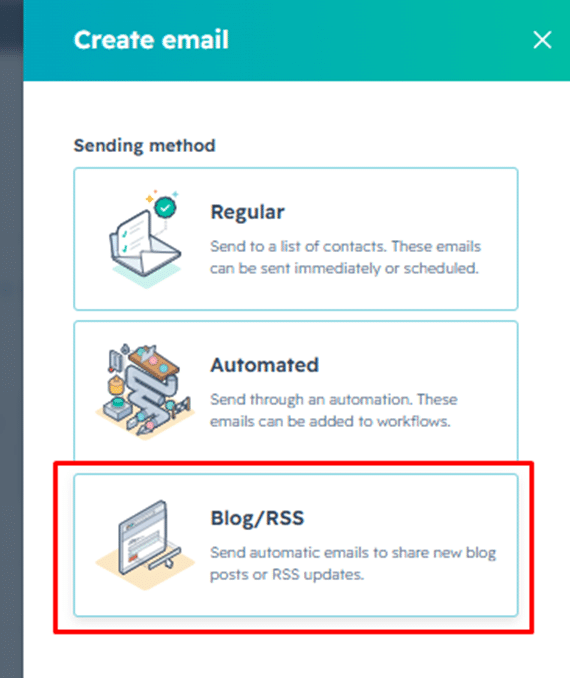
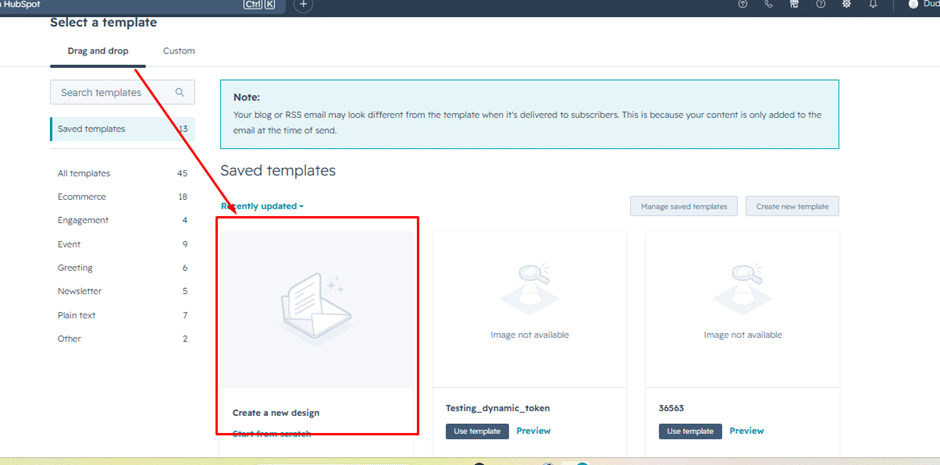
Step 1: Create RSS Email
Navigate to:
Marketing → Email → Create Email → Blog/RSS
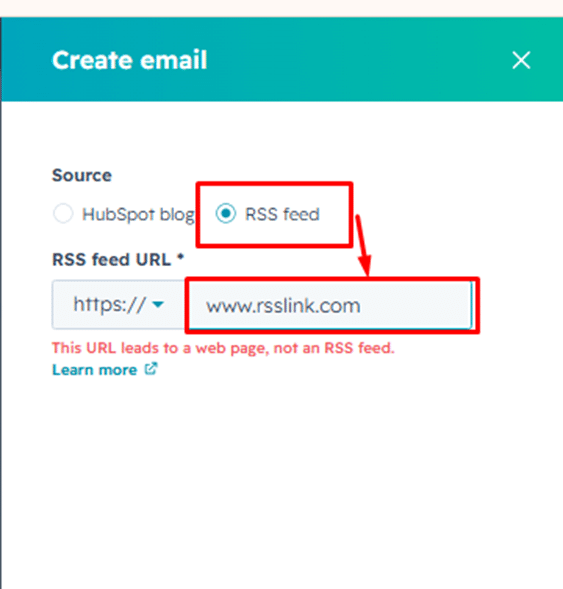
Step 2: Enter RSS Feed URL
Example:
HubSpot checks if the feed is valid before you continue. This helps you avoid problems later.
Step 3: Configure Send Frequency
Choose:
- Daily
- Weekly
- Monthly
You can also choose the exact days and times for your emails to be sent.
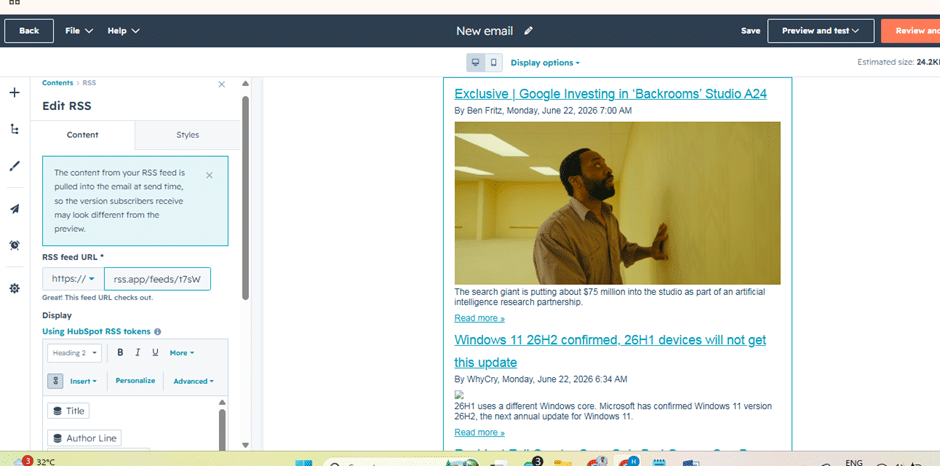
Step 4: Design RSS Template
You can add several RSS modules, such as:
- RSS Listing
- Featured Image
- Article Description
- Read More Button
Step 5: Publish and Activate
After that, HubSpot takes care of everything. When new content appears in your feed, the email is sent automatically.
Advanced tip
You can use custom code, but check the limitations first.
Some features that work in the drag-and-drop RSS editor may not be fully supported with custom code.
2. Mailchimp RSS to email
In Mailchimp, this feature is called “RSS-to-Email.” Look for that name as you set things up. These are the steps.
Step 1: Create a campaign
Create Campaign
- Select Automated Campaign
- Choose Share Blog Updates

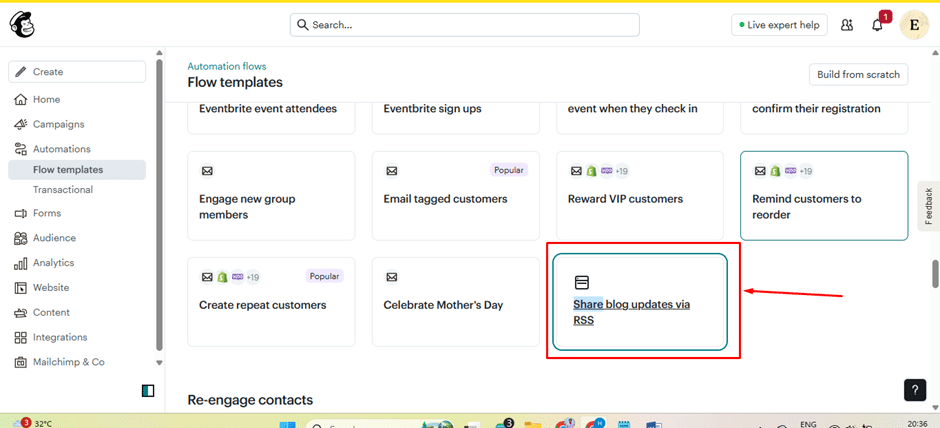
Step 2: Add RSS URL
Add RSS Feed URL
Example:
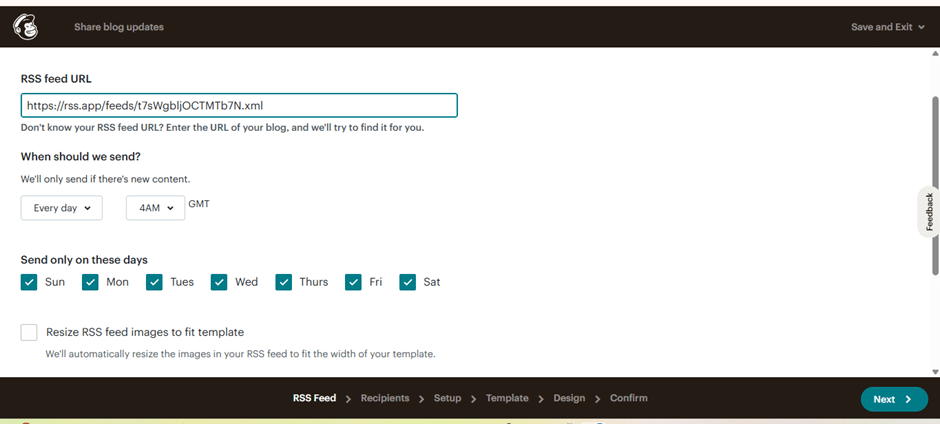
Step 3: Configure schedule
Options include:
- Daily
- Weekly
- Monthly
Step 4: Customize RSS merge tags
Examples:
|RSSITEM:TITLE|
|RSSITEM:URL|
|RSSITEM:CONTENT_FULL|
Step 5: Test and launch
Once you finish, Mailchimp will automatically create and send emails whenever new items appear in your feed.
Advanced Tip
Use conditional merge tags when you want different layouts for each content category. For example, news items and product updates can have their own styles.
3. Klaviyo RSS email
Klaviyo does things a bit differently. Rather than having a separate RSS campaign type, you can add RSS blocks to your campaigns and flows.
First, you’ll have to set up your feed. Here are the steps:
- Click on your company name in the bottom-left corner of Klaviyo.
- Click Settings.
- Click Other
- Click Web feeds.
- Click Add Web Feed.
Next, fill in the web feed fields as follows:
Feed name
You’ll use this name in your template to pull in the feed’s content. Choose a short, clear name.
We recommend using camelCase, like myDataFeed. You can also use uppercase with underscores, like MY_DATA_FEED, but avoid using spaces.
Feed URL
This is the URL Klaviyo will use to get your feed’s content (the JSON or XML feed you set up earlier). If your feed has private data, use an HTTPS URL. Add a nonce query parameter for extra security, too.
Request method
Choose the HTTP method for getting your feed. If you’re unsure, just pick GET.
Content type
JSON or XML. JSON is recommended. If you use XML, Klaviyo will convert it to JSON.


Now that you have set up your feed, follow these steps.
Step 1
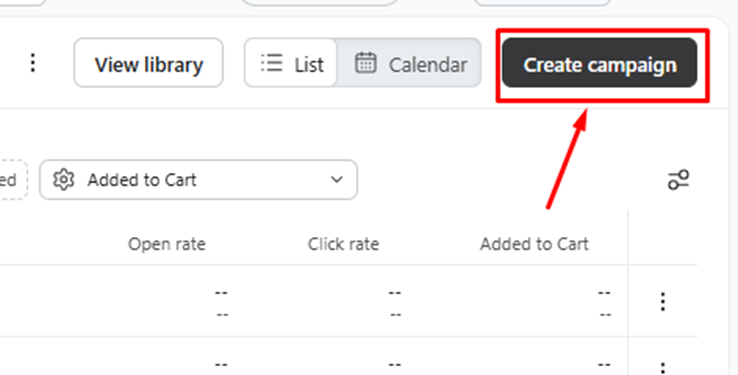
Create a Campaign or Flow
Step 2
Build your email. Then add repeat logic so it loops through and shows each item from the RSS feed:
- Open your Campaign or Flow email and drag a Text Block (or Table) into your template where you want the articles to appear.
- Click on the Text Block, then go to the Display Options tab on the left.
- Click Create Repeat Rules.
- In the Repeat For field, reference your feed using the following syntax:
feeds.YOUR_FEED_NAME.rss.channel.item (replace YOUR_FEED_NAME with the exact name you used in step 1). - Insert your article variables (such as {{ item.title }} or {{ item.link }}) into the text block to dynamically pull post titles and URLs.
Step 3
Next, connect your email to your test web feed and check that the values are coming through. After that, you can use Klaviyo’s template logic to display the content in any way you want.
4. Braze RSS email
Braze works differently from most platforms. Instead of using the usual RSS modules, it relies on Connected Content. So the setup process is a bit unique. Braze doesn’t have a specific campaign type for RSS emails. Because of this, most teams use a two-step approach:
- First, convert your RSS feed (XML) into JSON or HTML using your own middleware. Alternatively, you can use an API endpoint.
- Next, use Connected Content to pull the feed into your email when it sends. From there, you can render it with Liquid.
Option A (the simplest): Have your endpoint return HTML that’s ready to insert.
{% connected_content https://yourdomain.com/rss-to-email-html :save rss %}
{{rss}}
Option B: Have your endpoint return JSON, then use Liquid to loop through the items.
{% connected_content https://yourdomain.com/rss-to-json :save feed %}
{% for item in feed.items limit:3 %}
<p><a href=”{{item.link}}”>{{item.title}}</a></p>
{% endfor %}
If you want the emails to send automatically, set the campaign to run on a recurring schedule in Schedule Delivery.
Here’s a quick tip: Try to keep the JSON your endpoint returns simple and consistent. The simpler the structure, the easier your Liquid code will be. You’ll have fewer rendering issues later, too.
5. Marketo RSS email
Marketo Engage does not have built-in RSS-to-email features for sending automated blogs or news digests. To do this, you will need to set up your own solution. Most people use a third-party app or create a custom webhook that collects your feed, formats it, and sends it to Marketo.
Option 1: Third-party integrations (Recommended)
These tools connect directly to Marketo. They collect your feed, build the email, and handle the scheduling for you. This is the easiest choice if you want to avoid writing code:
- Feedotter is the most popular all-in-one newsletter curation app designed specifically for Marketo Engage. It pulls your RSS/JSON feed, applies your brand template, and uses native Marketo campaigns to trigger and track sends.
- Digesto is an Adobe Exchange partner app that listens for new articles on your RSS feed. From there, it dynamically builds an email draft, and automates delivery to your subscriber lists.
Option 2: Custom Webhook & API Solution
Apart from these RSS to email services, if you have some engineering resources available, you can use a small stateless script, such as an AWS Lambda, to handle the entire process:
- Parses your website’s RSS XML feed.
- Formats the latest articles into JSON/HTML.
- Uses the Marketo REST API to push the articles as custom tokens (e.g., {{my.Article1}}) into Marketo.
- Uses a Marketo smart campaign to schedule and send the pre-populated email to your audience.
Common RSS to email challenges across ESPs
1. Invalid XML structure
Symptoms:
- Feed not recognized
- Import failures
Solution:
Check your feed with an XML validator before setting anything up. Finding problems early is much easier than trying to fix a campaign that fails without warning.
2. Missing images
Symptoms:
- Broken email layouts
Solution:
Make sure every image URL can be accessed publicly. If an image is behind a login or a private CDN, it will appear broken in the inbox.
3. Duplicate sends
Symptoms:
- Subscribers receive the same piece of content again and again.
Solution:
Check your feed caching and publication timestamps. Duplicate sends are usually caused by issues with one of these.
4. Feed timeout errors
Symptoms:
- RSS content fails to load
Solution:
Use a CDN or an intermediary API in front of your feed. This way, the ESP does not have to wait for a slow origin server.
4 best practices for adding RSS feed to email
1. Limit content volume
Adding too much content can lower engagement. Including 3-4 articles in each email usually works best.
2. Prioritize featured content
Use:
- Hero article
- Secondary articles
- CTA section
This approach works better than giving every item equal importance. A clear hierarchy helps readers know where to focus first.
3. Segment RSS newsletters
Examples:
- Customers
- Prospects
- Partners
- Enterprise users
Each group has different interests. So they should receive a mix of content that fits their needs.
4. Track beyond opens
Monitor:
- Article clicks
- Category engagement
- Content consumption trends
- Conversion impact
This gives you a fuller picture than just looking at open rates. Opens show some interest, but clicks and conversions reveal what really works.
The last word on RSS to email
RSS-to-email is more than just a way to send blog updates, even though many teams miss this. As we saw, it can turn a basic feed into a strong content tool for personalization, segmentation, thought leadership, product marketing, and automated newsletters. You’ll spend less time making campaigns while getting more eyes on your content. Best of all, your marketing system will keep working even when you focus on other things. Cheers to that!

Yashkumar Patel - Subject Matter Expert (SME)

